One email, seven touches — and what Dynamics already does
This is the first of eight rounds on one build: a support mailbox where an email becomes a case, a contact, a grounded reply and an approval without a person touching it — and where every step is shown and every number was measured. Fictional company, one sandbox, nothing invented.
Before building anything, two things have to be true: you know what the manual work costs, and you know what the product already does about it. This round is those two things. The flow starts in round 2.
Why: seven touches
Walk a support email through a service desk and count what a person does before anyone has replied.
| # | Touch | What it needs |
|---|---|---|
| 1 | Read the email | attention |
| 2 | Find the sender | a search in contacts, often by the address |
| 3 | Create the contact when there is none | name, company, phone from the signature, by hand |
| 4 | Convert the email to a case, give it a title | a decision about what the email is |
| 5 | Write the description | a summary a colleague can act on |
| 6 | Look up the order | another app, another search |
| 7 | Write the reply | the facts from step 6, in the right tone |
Seven touches, and three of them are lookups rather than judgement. That ratio is the whole argument of this series: the lookups belong to a machine, the judgement belongs to a person, and the design question is where the line goes. We will keep returning to it.
How: switch on what is in the box
Dynamics 365 Customer Service takes three of the seven touches out with configuration, no flow. Here is each, as we set it up in the sandbox, with what it did.
1 · Automatic record creation rule: email → case
Customer Service admin center → Customer support → Case settings → Automatic record creation and update rules → New.
- Name the rule, pick the activity type Email, and the queue that receives the mailbox (ours: Merchant Support).
- Add a rule item: leave the conditions empty for “every email”, choose the action Create case, and map the fields. The modern rule maps Subject → Title and sender → Customer (contact or account) for you, and sets Origin = Email. We added Description → Description.
- Activate. The rule generates a cloud flow named after the rule item — “ARC: … (do not delete or rename)” — with its trigger and its last two steps marked “do not edit”. That generated flow is where the mapping actually lives.
What it did with a known sender’s email: a case, created 27 seconds after our own flow’s case for the same email (more on that below), with the raw subject as the title and the raw email HTML as the description.
What it did with an unknown sender: nothing. The generated flow terminated with “no valid customer found”, because the sender was on no contact or account. A rule can be set to create the contact; by default it does not.
2 · Case Management Agent: predict the fields
Case settings → Case Management Agent → Case creation and update → New rule. Pick the fields the agent fills on a new case — we chose Title, Description and Product — and publish. Two prerequisites that cost us an afternoon: the environment must be on a pay-as-you-go billing plan (Power Platform admin center → Billing → Billing plans → the enabled plan → Environments → Add), and the page shows a Pay-as-you-go badge once it is; and in the current wave there is no Activate button, the agent is published.
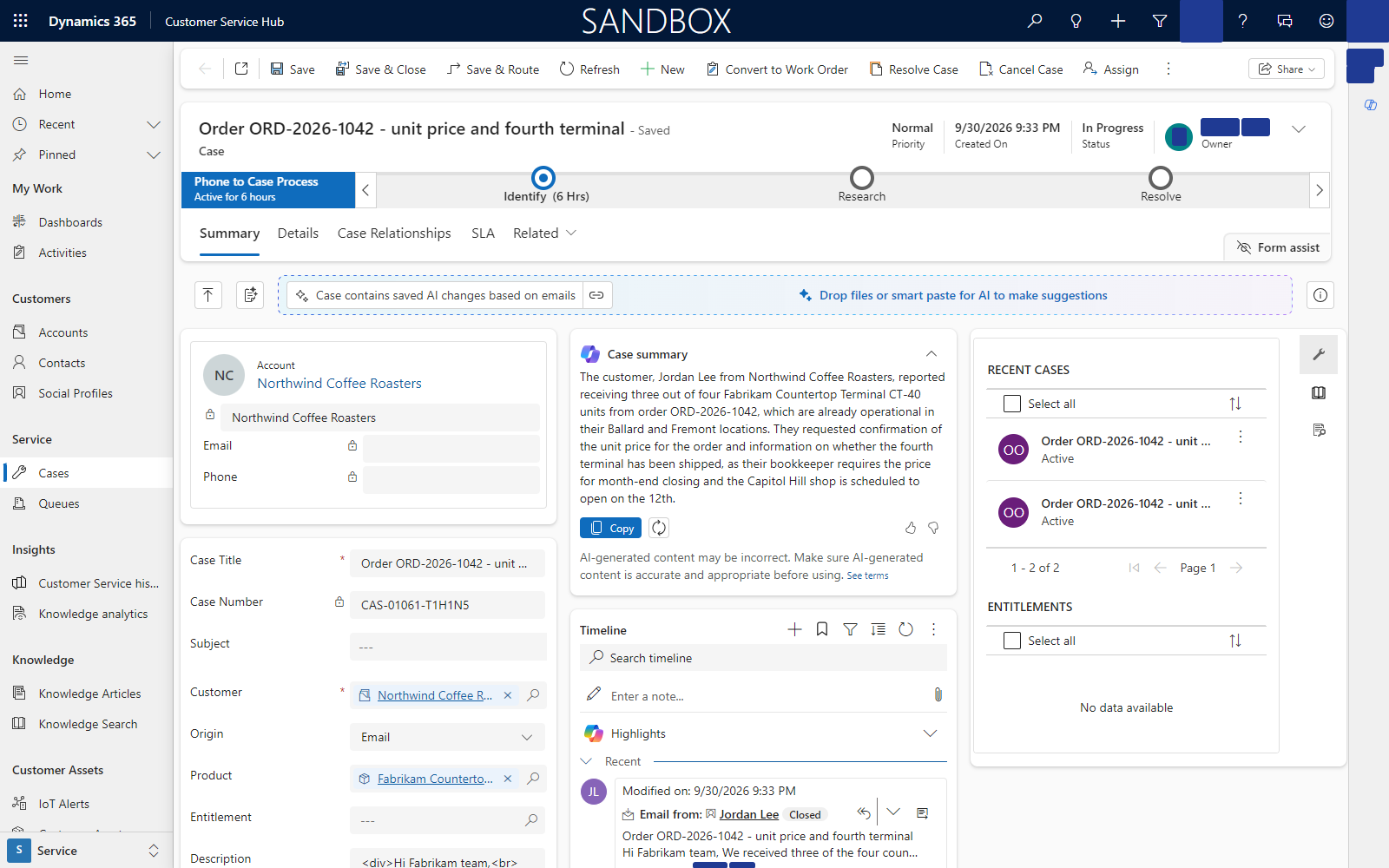
What it did: 36 seconds after the rule created the case, the agent set Product = Fabrikam Countertop Terminal CT-40 — a real lookup, resolved to the product record, from the words “countertop terminals” in the email. It did not overwrite the raw title or the raw description the rule had mapped; prediction fills what is empty.
3 · Copilot case summary
Nothing to configure in our environment: the summary panel was on the case form by default and summarised the email in four sentences — customer, what they received, what they asked, why it is urgent. It is the best of the three on a tense email, and it is read-only: it tells the representative, it does not write to the case.
What we measured
| Native result | Time | |
|---|---|---|
| Known sender, order question | case from the rule; Product predicted by the agent | case at +27 s after our flow’s; Product at +36 s after the case |
| Unknown sender, full signature | no case (“no valid customer found”) | — |
| Same email, rule and our flow both on | two cases for one email | 27 s apart |
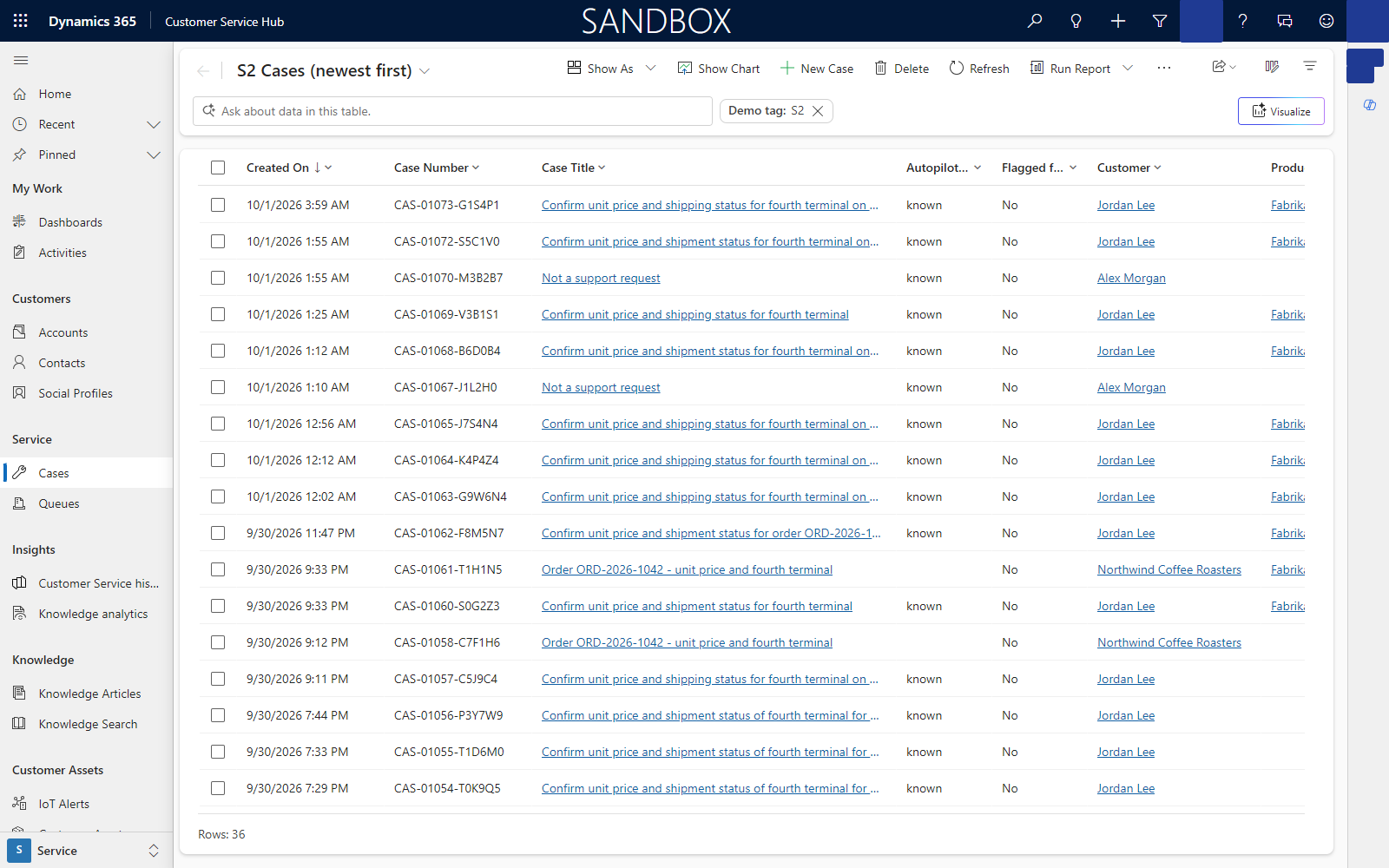
The last row is the finding that shaped the whole build. A record creation rule and a flow are each correct on their own; together they watch the same queue and each makes a case, because both fire on the email before either has set it regarding anything. There is no setting that reconciles them. One owner per queue: the rule or the flow creates the case, never both. Round 7 shows the two ways to wire that.
Where it bit us
Twelve days after the measurements above, on rehearsal day, an email from a sender that was on no contact came in as a known sender. Our flow found the address on a contact that had been created seconds before the flow ran, with the sender’s display name and nothing else: no company, no title, no phone.
The author was server-side synchronization, acting on behalf of the user who owns the queue, under that user’s personal option “Automatically create records in Dynamics 365 — Create: Contacts, from the sender or organizer of tracked email messages”. It is on by default for every user in an environment. It is a personal setting, not a policy, which means whoever owns a queue mailbox decides it without knowing they did.
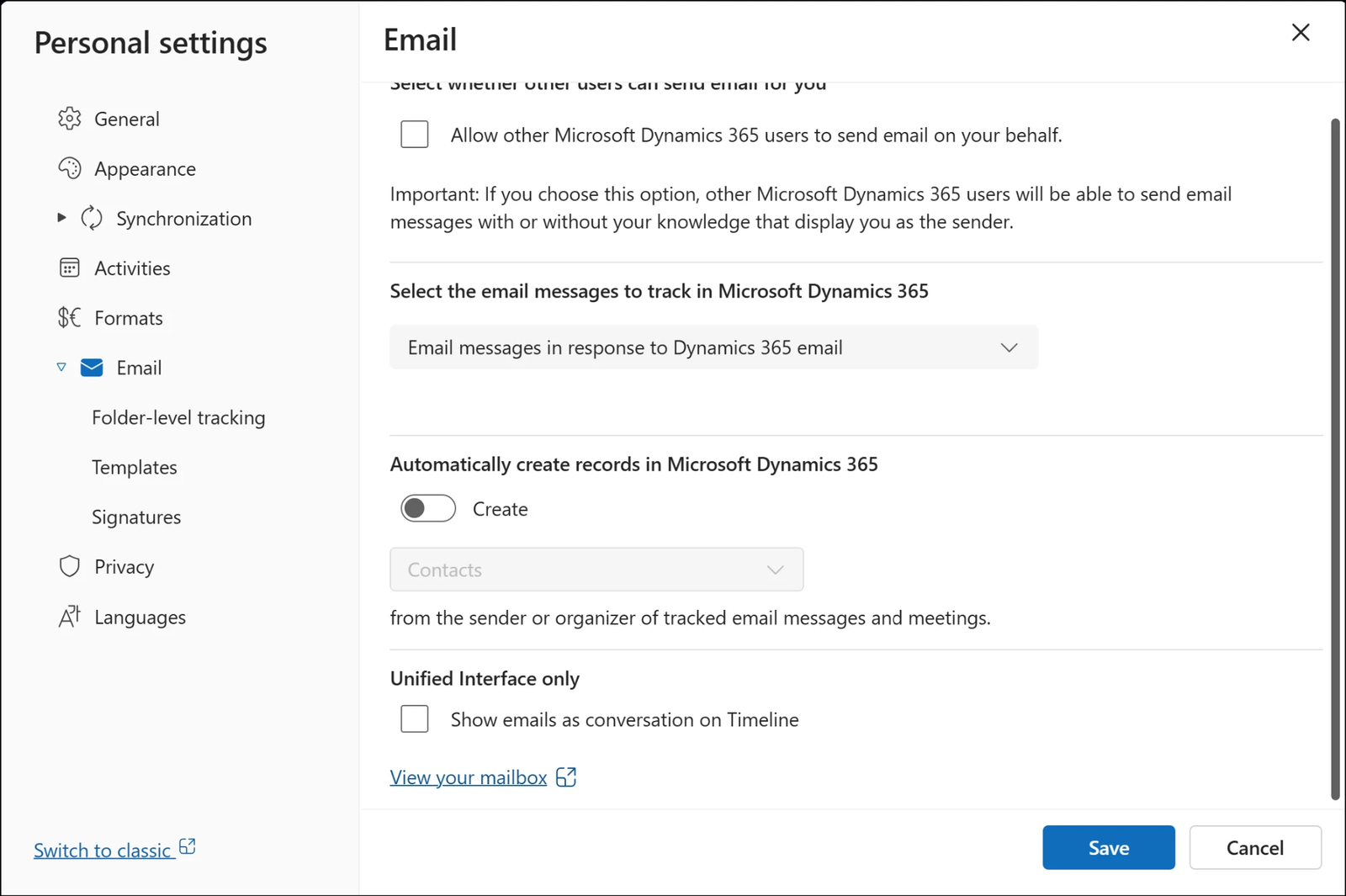
If you want a flow — or a rule — to decide who an unknown sender is, switch it off on the account that owns the queue: gear → Personalization settings → Email → Automatically create records in Dynamics 365 → Create: off. We also made our preflight script fail when it is on. For a sales rep tracking their own inbox the option is exactly right; for a service queue it decides identity before anyone looks, on the thinnest possible evidence.
What native did not do, and what the next rounds add
Three things, which are the three objectives of the series:
- Who is writing. The rule needs an existing customer; the personal option guesses from a display name. Round 4 reads the signature with a confidence per field, matches a known person writing from a new address, and creates a contact only when it is sure.
- An answer. Nothing native read the order the email was about. Round 5 reads it through the Dynamics 365 Sales MCP Server from inside the flow, with a deterministic fallback.
- A gate. Nothing native asked a person before a reply. Round 6 is the approval in Teams, the timeout you control, and the audit note on the case.
Everything else — the trigger, the guards, the five prompts, the costs — is rounds 2, 3 and 8.
Try it this week
Thirty minutes in a sandbox: create the rule on a test queue, send one email from an address that is on a contact and one from an address that is not, and look at what the rule did with each. Then open your own personal settings and look at the Create toggle. If you run a flow on the same queue, you now know why you will see two cases.
Next round: trigger on the email row, not the mailbox — why the flow listens to Dataverse, and the two guards that run before any model.

Lorenc Koka, MD · Senior Delivery Director - Solutions Architecture · Argano
Physician by training; went back to school for computer science; builds and measures.
 5× FastTrack Recognized Solution Architect Dynamics 365 Customer Engagement · 2022 – 2026